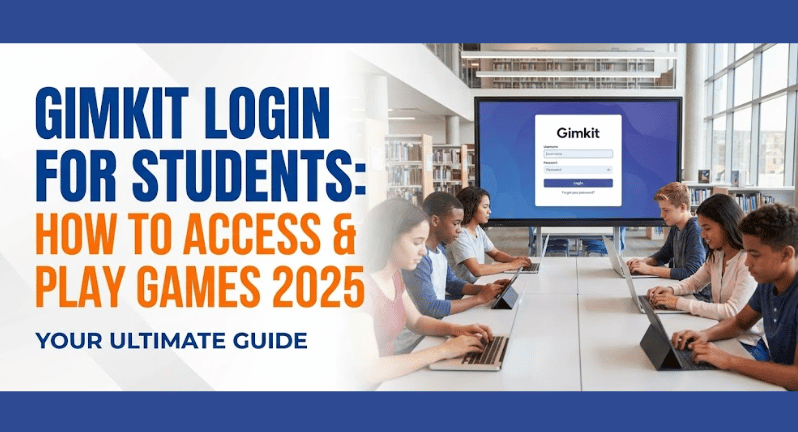
Gimkit Login for Students: How to Access & Play Games 2025
You don’t need a Gimkit login to play games—just visit gimkit.com/join and enter the 6-digit game code your teacher gives you. However, creating a free student account lets you earn XP, unlock power-ups and cosmetics, save progress, and create your own practice kits. Login takes 30 seconds using your Google account, email, or school Clever credentials.
If you want the full Gimkit experience with unlockable rewards and personal stats, creating an account is worth it—and it’s completely free.
Do Students Need to Login to Gimkit?
The short answer: No, but it helps.
Playing Without an Account (Guest Mode) You can join any live game without creating an account. Visit gimkit.com/join, enter the code your teacher displays, type a nickname, and start playing immediately. You’ll participate fully in the game, answer questions, and compete with classmates.
Benefits of Creating a Student Account
- Earn and keep XP points across all games you play
- Unlock cosmetic items like avatars, titles, and themes
- Track your progress and see improvement over time
- Create your own kits to practice topics independently
- Join teacher classes to see assignments and track grades
- Save game history and view past performance
- Access assignments your teacher posts as homework
The Bottom Line: If you’re playing Gimkit just once or twice, skip the account. If you play regularly in class, an account makes the experience way better.
How to Join Gimkit Games Without Login (Quick Play)
This is the fastest way to play—perfect for classroom games.
Step 1: Get the Game Code
Your teacher will display a 6-digit code on their screen or smartboard. Write it down or remember it—you’ll need it in the next step.
Step 2: Go to the Join Page
Open any web browser on your device (phone, tablet, Chromebook, or computer). Type gimkit.com/join in the address bar and press Enter.
Step 3: Enter the Code
You’ll see a large box asking for the game code. Type the 6-digit code exactly as shown (letters and numbers). Click “Enter” or press Enter on your keyboard.
Step 4: Choose Your Nickname
Enter the name you want to display during the game. Some teachers require your real name for grading, while others let you use creative nicknames. Follow your teacher’s instructions.
Step 5: Start Playing
Once you enter your name, you’ll join the game lobby. Wait for your teacher to start the game, then begin answering questions to earn cash and compete!
Pro Tip: Bookmark gimkit.com/join on your device for even faster access next time.
How to Create a Gimkit Student Account
Want to unlock rewards and save your progress? Setting up an account takes less than a minute.
Method 1: Sign Up with Google (Easiest)
Step 1: Visit Gimkit Signup Go to gimkit.com/signup in your web browser.
Step 2: Choose Student Account Click the “Student” button to indicate you’re a student, not a teacher.
Step 3: Continue with Google Click the “Continue with Google” button. A pop-up window will appear asking you to select your Google account.
Step 4: Select Your Account Choose the Google account you want to use (usually your school Gmail if you have one). Click “Allow” when asked to give Gimkit access to your basic profile information.
Step 5: You’re Done! You’ll be automatically logged in and taken to your student dashboard. No password to remember—your Google account handles everything.
Method 2: Sign Up with Email
Step 1: Visit Gimkit Signup Go to gimkit.com/signup in your web browser.
Step 2: Choose Student Account Click “Student” as your account type.
Step 3: Enter Your Information
- Type your email address (personal or school email)
- Create a strong password (at least 8 characters)
- Enter your first and last name
Step 4: Click Sign Up Click the “Sign Up” button to create your account.
Step 5: Verify Your Email Check your email inbox for a message from Gimkit. Click the verification link inside to activate your account. (Check your spam folder if you don’t see it within 5 minutes.)
Step 6: Login and Start Return to gimkit.com, click “Login”, and enter your email and password.
Method 3: Sign Up with Clever (School Accounts)
Step 1: Visit Gimkit Signup Go to gimkit.com/signup in your web browser.
Step 2: Choose Student Account Click “Student” as your account type.
Step 3: Continue with Clever Click the “Continue with Clever” button. You’ll be redirected to your school’s Clever portal.
Step 4: Login to Clever Enter your Clever username and password (the same credentials you use for other school apps).
Step 5: Authorize Gimkit Click “Allow” when Clever asks if Gimkit can access your basic information.
Step 6: You’re In! You’ll be logged into Gimkit automatically using your school account.
How to Login to Gimkit (If You Have an Account)
Already created your account? Here’s how to login each time you want to play.
Step 1: Go to Gimkit
Visit gimkit.com in any web browser.
Step 2: Click Login
Find the “Login” button in the top-right corner of the page and click it.
Step 3: Choose Your Login Method
If You Used Google: Click “Continue with Google”, select your Google account, and you’re in.
If You Used Email: Enter your email address and password, then click “Login”.
If You Used Clever: Click “Continue with Clever” and login through your school’s Clever portal.
Step 4: Access Your Dashboard
After logging in, you’ll see your student dashboard with your XP, unlocked items, available games, and any assignments from your teachers.
Troubleshooting Login Problems (Student Issues)
Stuck on the login screen? Here’s how to fix the most common problems.
“I Forgot My Password”
Click “Forgot Password?” on the login page. Enter the email address you used to sign up. Check your email for a password reset link. Click the link and create a new password. Return to Gimkit and login with your new password.
If you signed up with Google or Clever: You don’t have a Gimkit password—your Google/Clever password is what you need. Reset your password through Google or ask your school tech support for Clever help.
“My Email or Password Isn’t Working”
Make sure Caps Lock is OFF—passwords are case-sensitive. Check for extra spaces before or after your email/password. Try typing instead of copy-pasting. Verify you’re using the email address you originally signed up with.
“The Google Login Button Doesn’t Work”
Allow pop-ups in your browser—Google login uses a pop-up window. Check that you’re using a supported browser (Chrome, Firefox, Safari, Edge). Try clearing your browser cookies and cache. Make sure you’re clicking “Continue with Google” and not trying to use email/password.
“I Can’t Access Gimkit at School”
Some schools block gaming websites on their networks. Ask your teacher to contact IT and request access to *.gimkit.com. Try accessing Gimkit on a different network (your phone’s hotspot or home WiFi) to confirm it’s a school block. Talk to your school technology coordinator about adding Gimkit to approved educational sites.
“I Didn’t Get the Verification Email”
Check your spam, junk, or promotions folder—verification emails often go there. Wait 5-10 minutes—email can be delayed. Add noreply@gimkit.com to your contacts. Click “Resend verification email” on the login page.
“The Page Won’t Load”
Make sure you have internet connection. Try refreshing the page (press F5 or click the refresh button). Clear your browser cache and cookies. Try a different web browser. Check if Gimkit is down by searching “is Gimkit down” on Google.
What Can You Do with a Student Account?
Understanding what your student account offers helps you decide if creating one is worth it.
Earn XP and Level Up
Every question you answer correctly in games earns you XP points. XP accumulates across all games you play. Higher levels unlock new cosmetic items and show your experience. Your level displays on leaderboards and in games.
Unlock Cosmetics and Items
As you level up, you unlock avatars, titles, and color themes. Customize your profile to stand out during games. Show off rare items you’ve earned through gameplay. New items get added regularly by Gimkit.
Create Your Own Practice Kits
Build question sets on topics you’re studying. Use your kits to practice independently outside of class. Share kits with friends (if your teacher allows). Study for tests using kits you create yourself.
Join Teacher Classes
When teachers add you to their class roster, you’ll see their assignments. View upcoming homework and due dates. Track your grades and performance in that class. Get notifications about new games or assignments.
Track Your Stats
See how many questions you’ve answered total. View your accuracy percentage over time. Compare your performance across different subjects. Identify topics where you need more practice.
Play Solo Practice Mode
Practice any kit independently without waiting for live games. Play at your own pace to master material. Great for studying before tests or quizzes. No pressure—it’s just you and the questions.
Access Homework Assignments
If your teacher assigns homework through Gimkit, you’ll need an account. Complete assignments on your schedule within the deadline. Your teacher sees your scores and progress automatically. Assignments count toward your class grade.
Staying Safe on Gimkit
Protect yourself online by following these simple safety rules.
Never Share Your Password
Your password is private—don’t tell friends or classmates. Teachers and Gimkit staff will never ask for your password. If someone asks for your password, it’s likely a scam. Use a unique password you don’t use on other websites.
Use Appropriate Nicknames
Choose names that won’t get you in trouble with your teacher. Avoid using your full real name if you’re playing publicly. Don’t use offensive or inappropriate language. Remember that teachers and other students see your nickname.
Don’t Share Game Codes Publicly
Game codes are meant for your class only. Don’t post codes on social media or public websites. Sharing codes can let strangers join your class games. Keep codes private to maintain a safe classroom environment.
Report Inappropriate Content
If you see inappropriate questions or content in a game, tell your teacher immediately. Gimkit has reporting features—use them if you encounter problems. Help keep Gimkit a positive learning space for everyone.
Protect Your Personal Information
Don’t share your address, phone number, or other personal details. Be careful about what information appears in your profile. Use your school email instead of a personal email if possible. Ask a parent or guardian before creating any online accounts if you’re under 13.
Gimkit on Mobile Devices
Gimkit works great on phones and tablets—no app download required.
Playing on Your Phone or Tablet
Open your mobile web browser (Safari on iPhone/iPad, Chrome on Android). Type gimkit.com/join to join games or gimkit.com to login. Enter game codes or login credentials normally. The website automatically adjusts for smaller screens.
Touch-Optimized Gameplay
All buttons and features work with touch screens. Swipe and tap work as expected. Games run smoothly on most modern devices. Answer questions by tapping your choices.
Best Practices for Mobile
Use WiFi instead of cellular data when possible—Gimkit uses video and can drain data quickly. Keep your device charged—games can use battery. Turn on “Do Not Disturb” during games to avoid interruptions. Close other apps to prevent lag or slow performance.
When Mobile Isn’t Ideal
Small phone screens can make reading longer questions difficult. Typing short answers is slower on phone keyboards. Some Gimkit game modes work better on larger screens. Use a tablet or computer when available for the best experience.
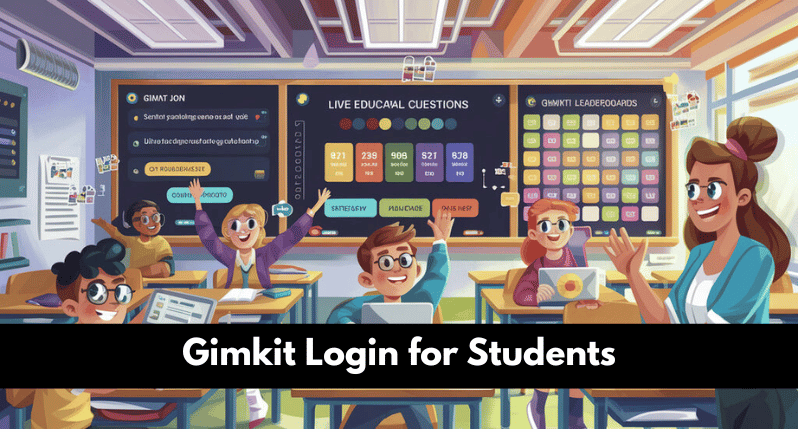
Playing Gimkit vs. Having an Account: Side-by-Side
Still deciding whether to create an account? Here’s a clear comparison.
Guest Play (No Account)
What You Can Do:
- Join any live game with a code
- Answer questions and compete
- See your score during that game
- Participate in class activities
What You Can’t Do:
- Earn XP or unlock cosmetics
- Save your progress between games
- Create your own practice kits
- Access homework assignments
- Join teacher class rosters
- Track your improvement over time
Best For: One-time players, students who only play occasionally, situations where you don’t want to create accounts.
Student Account (Free)
What You Can Do:
- Everything from guest play PLUS
- Earn XP and level up across all games
- Unlock avatars, titles, and themes
- Create unlimited practice kits
- Join teacher classes and rosters
- Complete homework assignments
- View detailed stats and history
- Play solo practice mode anytime
What You Can’t Do:
- Create advanced kits (teachers have more creation tools)
- Host games for other students
- Access teacher analytics
Best For: Regular Gimkit players, students who want rewards, anyone doing homework assignments, students who want to track improvement.
Quick Tips for Better Gimkit Experience
Make the most of Gimkit with these student-tested strategies.
For Faster Logins
Bookmark gimkit.com/join for quick game access. Save your password in your browser (only on personal devices). Use Google login—it’s faster than typing email/password. Stay logged in on your personal device to skip login steps.
For Better Performance
Use updated browsers—Chrome and Firefox work best. Close unnecessary tabs to free up memory. Play on WiFi when possible for stable connection. Clear browser cache if games load slowly.
For Earning More XP
Answer quickly AND accurately—speed matters. Play regularly since XP adds up over time. Complete homework assignments—they give XP too. Practice with kits you create to master topics.
For Joining Games Smoothly
Write down codes carefully—mix-ups waste time. Check the code display for capital vs. lowercase letters. Type codes quickly before games start. Ask your teacher to repeat codes if you missed them.
FAQs
Do I need a Gimkit login to play?
No, you can play games without an account by visiting gimkit.com/join and entering your teacher’s game code. However, creating a free account lets you earn XP, unlock cosmetics, save progress, and complete homework assignments.
How do I join a Gimkit game as a student?
Go to gimkit.com/join, enter the 6-digit code your teacher displays, type your name, and click Enter. You’ll join the game lobby and can start playing when your teacher starts the game.
Is Gimkit free for students?
Yes, Gimkit is completely free for students. You can create accounts, join unlimited games, create practice kits, and access all student features without paying anything. Only teachers pay for premium features.
What if I forgot my Gimkit password?
Click “Forgot Password?” on the login page, enter your email, and check your inbox for a reset link. If you signed up with Google or Clever, you don’t have a Gimkit password—use your Google or school credentials instead.
Can I play Gimkit on my phone?
Yes, Gimkit works on phones and tablets through web browsers—no app needed. Visit gimkit.com/join or gimkit.com on your mobile browser and everything works normally, optimized for touch screens.