How to Share Gimkit on Google Classroom: Assignment and Live Game Links (2026)
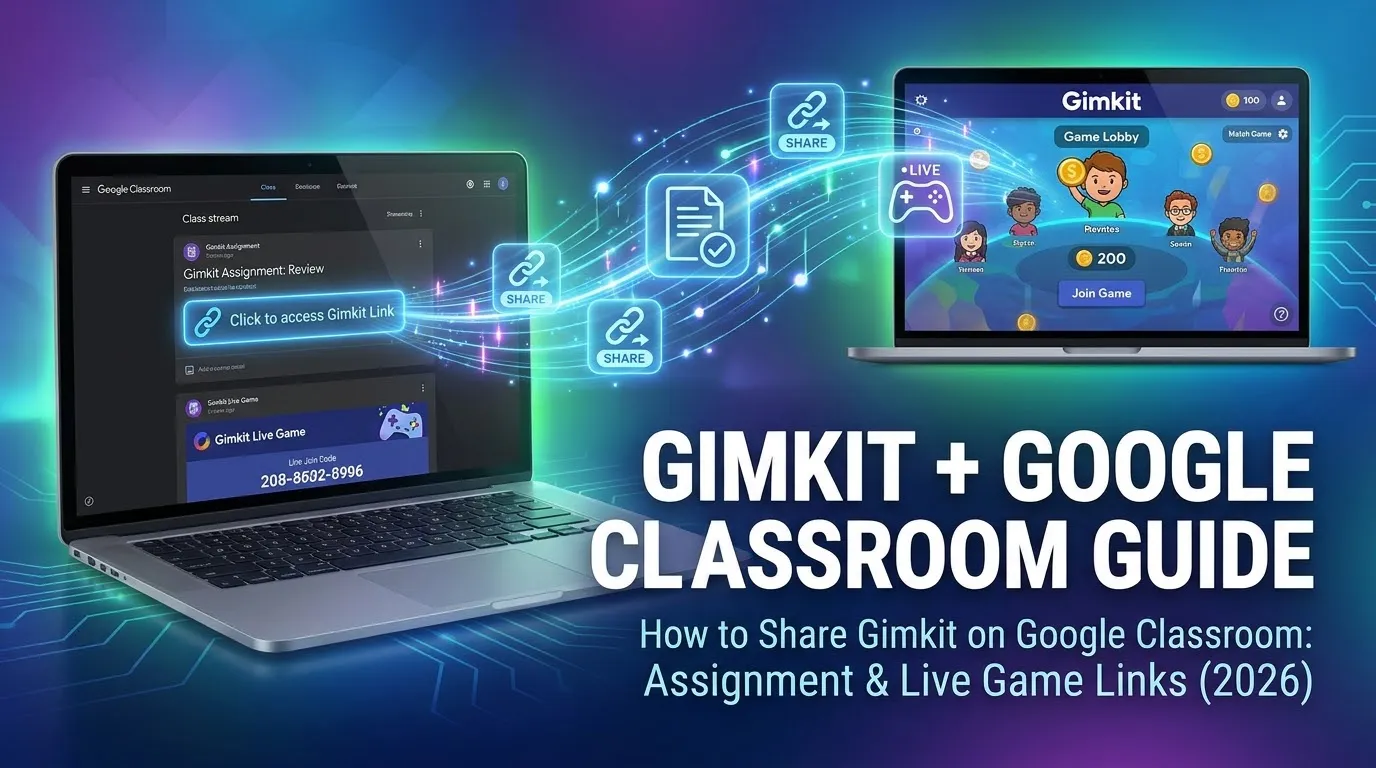
To share Gimkit on Google Classroom, copy the link from Gimkit (an assignment link, a live game join link or a practice link) and paste it into a Classroom assignment, material or announcement as a Link attachment. Gimkit’s help center does not document a Google Classroom integration, so sharing links is the method it describes.
This guide shows where to find each link, how to post it in Classroom, and which link suits which job. Last checked against Gimkit’s and Google’s help centers on October 31, 2026. GimkitJoin.uk is an independent guide and is not run by Gimkit or Google.
Share a Gimkit assignment in Google Classroom: 5 steps
- Copy the link in Gimkit. Open the assignment and copy its link. You get one link even if the assignment covers several classes.
- Open Google Classroom. Go to classroom.google.com, open your class and click Classwork.
- Create a post. Click Create, then Assignment.
- Attach the link. Add a title and instructions, then under Attach choose Link and paste the Gimkit URL.
- Set the details and post. Pick a due date, choose the classes or students, then click Assign.
Assignments in Gimkit are a Pro feature. No Pro plan? Share a live game link or a practice link instead (sections below).
These steps follow Gimkit’s Assignments explained guide and Google’s Create an assignment guide.
Does Gimkit work with Google Classroom?
Yes through links, but not through a documented built-in connection. Gimkit’s help pages on assignments and on joining classes never mention Google Classroom. They describe three things instead:
- A shareable assignment link, one per assignment.
- Join links, game codes and QR codes for live games.
- Google sign-in, which students use to join a Gimkit class.
Gimkit’s help pages describe no roster sync, so plan on two separate class lists: your Google Classroom class and your Gimkit class. Students are added to a Gimkit class through its join link, covered below.
If Gimkit adds a Classroom button later, it will appear in Gimkit’s help center first, so check there if your dashboard shows a new share option.
Where to find your Gimkit assignment link
The link lives inside the assignment itself.
- On your Gimkit dashboard, click Assign HW next to a kit. You can also start from the Assignments section, but you must pick a kit first.
- Choose a game mode. Gimkit says assignments use 2D modes that don’t need a team or group.
- Set the options, such as the class and a due date. Most modes have a cash goal and an optional question goal, and the first goal a student reaches ends the assignment.
- Copy the assignment link from inside the assignment.
Students open the link and play on their own, from anywhere. If the assignment is connected to a Gimkit class, students in that class also see it on their dashboard. Results appear under Results once students finish, grouped by class.
Gimkit’s help pages do not say whether students need an account to play an assignment. Test the link in a private window before you post it.
How to post the link in Google Classroom
Pick the post type by what you need. Steps follow Google’s Classroom help pages.
| Post type | Best for | How to attach the link | Graded? |
|---|---|---|---|
| Assignment | A Gimkit task with a due date | Classwork > Create > Assignment. Under Attach, choose Link and paste the URL | Yes |
| Material | A practice link students can open any time | Classwork > Create > Material. Select Add, choose Link, enter the URL | No |
| Announcement | A quick “play now” link for a live game | On the Stream, click “Announce something to your class”. Click Add, choose Link, then Post | No |
Good to know
- Classroom marks work late the moment the due time arrives. For on-time work at 9:00 AM, set the due time to 9:01 AM.
- To post to several classes at once, choose them under For. Individual-student posting isn’t available when you pick more than one class.
- The Post button on an announcement stays grey until you type some text, even if a link is attached.
- Gimkit’s help pages describe results only inside Gimkit, so copy scores across by hand if you need them in the Classroom gradebook.
Share a live Gimkit game in Google Classroom
For a game you are hosting right now, paste the join link into a Classroom announcement so students open it in one click.
- Start hosting a game. Our guide to hosting a Gimkit game walks through each step.
- In the lobby, click the game code or the copy button next to the QR code. This copies a direct link to your game.
- In Classroom, open the Stream and click “Announce something to your class”.
- Type a short message, click Add, choose Link, and paste the link.
- Click Post.
Students can paste the join link into their browser to skip typing the game code. You can also show the QR code on your projector by hovering over the game code. Each live game has its own code and link, so post a fresh one for every game.
Share a Gimkit practice link
The practice link is the simplest option, and Gimkit’s guide lists no plan requirement for it. Click Practice on any kit and copy the link. Students get the questions and answers with no due dates, scoring, game mechanics, modes or reporting.
Post it in Classroom as a Material, which is not graded, so it works as a revision resource. Use an assignment link instead when you need results.
| Practice link | Assignment link | |
|---|---|---|
| Where to get it | Practice button on a kit | Inside the assignment |
| Due date | None | Optional |
| Scoring and reports | None | Results by class |
| Game modes | None | 2D modes |
| Best Classroom post | Material | Assignment |
How students join your Gimkit class with Google
Students can play a live game with only a game code. Gimkit says they need an account only for classes, XP and cosmetics. Here is how that works, per Gimkit’s class-join guide and its post on joining classes:
- Post your class join link in Google Classroom, the same way as any other link.
- Students open it and sign in with a Google account or an email address. With Google, joining takes one click.
- If you have auto-accept on, they are added at once. If it is off, they request access with the same link and you approve them.
If a Gimkit class is connected to an assignment, students can also join the class by clicking the assignment link. And if they enter the code for a live game hosted with a class, Gimkit offers to add them to the class and then returns them to the game.
Just need to get a student into a game? Send them to the Gimkit join page.
Which Gimkit link should you post?
Post a live game link to play now, an assignment link for graded homework, a practice link for revision, and a class join link once at the start of term.
| Link | Where to copy it | Best Classroom post | Needs Gimkit Pro? | Results in Gimkit? |
|---|---|---|---|---|
| Live game join link | Click the game code in the lobby | Announcement | No (Basic limits which modes you can host) | Game reports |
| Assignment link | Inside the assignment | Assignment | Yes | Yes, by class |
| Practice link | Practice button on a kit | Material | Not stated | No |
| Class join link | Your Gimkit class | Announcement or Material | Not stated | n/a |
Sources: Gimkit’s guides to hosting a live game, assignments, QR codes and joining classes, and its Pro FAQ updated May 20, 2026.
When students can’t open your Gimkit link
| Problem | Likely cause | Fix |
|---|---|---|
| The assignment link won’t open | The link was copied from the wrong place, or the school blocks the site | Copy it again from inside the assignment, and ask your IT admin to allow gimkit.com |
| Students can’t play an assignment | Assignments are a Pro feature | Check your plan, or post a practice link or live game link instead |
| A live game link fails | The game was ended, or you copied an old lobby’s link | Host the game again and post the new link |
| Students aren’t asked to join the class | The game wasn’t hosted with a class connected | Connect the class in Game Options before you start |
| A student can’t join the class | Auto-accept is off | Open the class and accept their request |
| Students can’t see the assignment on their dashboard | The assignment isn’t connected to a class | Connect a class, or send the link directly; they can also use the due date filter buttons |
| You posted the link but the Classroom post won’t send | An announcement needs text before Post becomes active | Type a message, then click Post |
Still stuck? Check your own Gimkit sign-in first, then test each link in a private window before you post it.
FAQs
Does Gimkit work with Google Classroom?
Through shared links, yes. Gimkit’s help center does not document a built-in Google Classroom integration, so you copy a Gimkit link and attach it to a Classroom post.
How do I share a Gimkit game on Google Classroom?
Copy the link from Gimkit, then in Classroom click Create, choose Assignment or Material, and add the URL under Attach or Add, Link. For a live game, post the join link as an announcement.
Where do I find the Gimkit assignment link?
Inside the assignment. You get one link even if it covers several classes.
Do students need a Gimkit account to open the link?
They need an account to join a class, earn XP or buy cosmetics. Gimkit’s pages do not say whether an assignment needs one, so test the link in a private window.
Can I share a Gimkit game without a Pro plan?
Yes for live games and practice links. Assignments are a Pro feature.
Can students join my Gimkit class from Google Classroom?
Post your class join link. Students sign in with Google or email and are added at once if auto-accept is on.
Do Gimkit scores go into the Google Classroom gradebook?
Gimkit’s help pages describe no sync, so results stay in Gimkit and you copy scores across by hand.
What is the difference between a practice link and an assignment link?
A practice link has no due date, scoring, modes or reporting. An assignment link has results by class and optional due dates.
What should I post in Classroom, an assignment or a material?
Use an assignment for a Gimkit task with a due date. Use a material for a practice link, because materials are not graded.