How to Host a Gimkit Game: Step-by-Step for Teachers (2026)
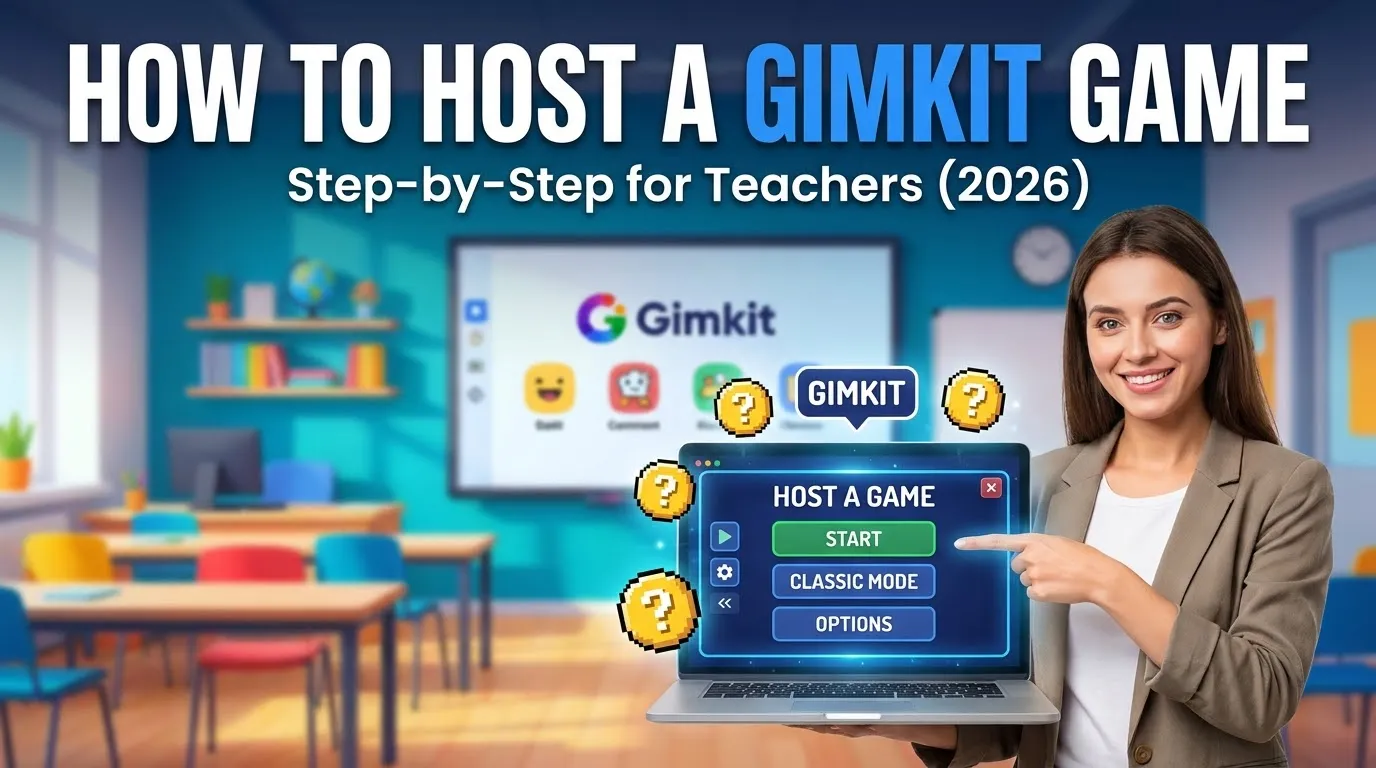
To host a Gimkit game, log in at gimkit.com/login, click Play Live next to a kit, pick a game mode, set the game options, then click Start Game once students have joined with the game code, join link or QR code.
Hosting needs a Gimkit account and a kit. This guide covers each step, the options that matter, how students join, and what to do when a game won’t start. Last checked against Gimkit’s help center on October 31, 2026. GimkitJoin.uk is an independent guide and is not run by Gimkit.
How to host a Gimkit game in 6 steps
- Pick a kit. Click the green Play Live button next to a kit on your dashboard, or use Play Live inside the kit.
- Pick a game mode. Choose a mode in the Mode Picker, then click Continue.
- Set the game options. Decide whether to connect classes, use the Nickname Generator, set the goal that ends the game, and allow late joiners. Options vary by mode. Click Continue.
- Share access in the lobby. The lobby shows your game code. Students join with the code, the join link or the QR code.
- Click Start Game. In 2D modes the button sits at the lower center; in other modes it is in the upper right.
- End the game. Click End Game to stop early, or let it finish when the goal is reached.
These steps follow Gimkit’s Host a live game guide.
What you need before you host
- An Educator account. Gimkit’s sign-up guide says the Educator account is the one used to create kits and host games. New here? Our Gimkit login guide covers sign-up and sign-in.
- A kit. A kit is your question set. Pick one already on your dashboard, or build one (see the make-a-game section below).
- Devices and a stable connection. Gimkit says it cannot control the devices or networks players use, and larger games need faster, more reliable connections.
How to choose a Gimkit game mode
Click Play Live on any kit to open the Mode Picker. Each mode shows a short description and Mode Labels. Click Learn More for a full explanation of how it plays.
Use the labels to match a mode to your class. Gimkit’s own example: for a calm game built on strategy and teamwork, look for the Calming, Strategic and Collaborative labels.
Gimkit’s game-option guide names five 2D modes: Snowbrawl, Fishtopia, Tag: Domination, Capture The Flag and Farmchain. Their balance options control how much players earn per correct answer, such as snowballs, bait or energy.
Which modes you see changes over time. Gimkit says featured and Pro Exclusive modes rotate every few weeks, so treat your Mode Picker as the current list.
Game options to check before you start
These four options appear for every live game mode, per Gimkit’s game-options guide. Mode-specific options vary.
| Option | What it does | Watch out for |
|---|---|---|
| Game goal | Sets how the game ends: time, cash, investigations, difficulty level or questions answered | Options differ by mode |
| Connect a class | Links a class to the live game | Students in the class join instantly at gimkit.com/join |
| Join in late | Lets students join after the game has started | On by default; turn it off to help prevent game-crashers |
| Nickname Generator | Gives players random nicknames | Not available when you use classes |
Join in late carries over to your next game. If you switch it off once, it stays off until you switch it back on, so check it every time.
Need more time mid-game? Click the time left to add one minute, up to 59 minutes in total.
How students join your Gimkit game
The lobby shows your game code. Students have three ways in:
- Game code. Students without a class go to gimkit.com/join and type the code.
- Join link. Click the game code on your screen to copy a direct link.
- QR code. Hover over the game code to show it, so students can scan it.
If you connected a class, students in it go to gimkit.com/join and join instantly. Students who need help with the code step can follow our Gimkit join page.
In the lobby of a non-2D mode you can review player names and remove any that are inappropriate. In a 2D mode, a toggle in the lower right lets you join as a player or as a spectator.
Host live or assign homework?
Host live when the class plays together now. Assign homework when students should play on their own time. Both start from a kit on your dashboard.
| Live game | Assignment | |
|---|---|---|
| Start with | Play Live | Assign HW |
| Who sets the pace | You, from the lobby | Each student |
| How students get in | Game code, join link or QR code | The assignment link you send, or their class dashboard |
| What ends it | The game goal, or you click End Game | The first goal a student reaches: a cash goal, or an optional question goal |
| Extra setup | Game options | Due date and class |
Source: Gimkit’s guides to hosting a live game and creating an assignment.
How to make a Gimkit game (create a kit)
The game you host is built from a kit. To make one from scratch:
- On your dashboard, click New Kit.
- Enter the kit’s name, language and subject.
- Choose a cover image. You can search Unsplash or paste an image link.
- Select Add a Question. Type the question, then the correct and incorrect answers. Click Check next to an answer to switch it between correct and incorrect. Add media if you want, then click Add.
- Repeat for every question, then click All Done to return to your dashboard.
- Find the kit on your dashboard and click Play Live.
A kit can have more than one correct answer. Audio questions need a paid Gimkit plan. To skip typing, Gimkit’s help center also has guides for the Question Bank, importing flashcard sets and creating a kit from a CSV file.
Free vs Pro: what limits your hosting
You can host on the free Gimkit Basic plan. The difference is mostly which modes you can play and whether you can assign homework. This table follows Gimkit’s Pro FAQ, updated May 20, 2026.
| Gimkit Basic (free) | Gimkit Pro | |
|---|---|---|
| Live games with featured modes | Yes, with as many students as you want | Yes |
| Game modes | About three free modes at a time, rotating | All modes, including Pro Exclusives |
| Assignments | Gimkit’s Basic announcement says new assignments can’t be created | Included |
| Image uploads and audio | Not listed | Included |
Gimkit’s player-maximums page lists hard limits of 500 students for live games and 60 for 2D modes. That page was last updated in January 2023, so confirm the numbers before a large session.
Gimkit host problems and fixes
| Problem | Likely cause | Fix |
|---|---|---|
| A student can’t join after the game starts | Join in late is off, and it carries over from your last game | Turn it on in Game Options before you start |
| No Nickname Generator option | A class is connected, and the generator is unavailable with classes | Host without a connected class if you want random nicknames |
| The mode you want isn’t listed | Basic shows about three free modes at a time, and featured modes rotate | Pick a listed mode now, or check again later; Pro unlocks all modes |
| The game ends too soon | The game goal was reached | Click the time left to add a minute, up to 59 in total; set a longer goal next time |
| The game lags or players drop | Gimkit can’t control players’ devices or networks | Use a faster, more reliable connection and keep the player count down |
| A player has an inappropriate name | In the lobby of a non-2D mode, review names and remove that player |
FAQs
How do I host a Gimkit game?
Log in, click Play Live next to a kit, choose a game mode, set the game options, and click Start Game once students have joined.
Do I need an account to host Gimkit?
Yes. Hosting and creating kits need an Educator account, which is free to create.
Is hosting a Gimkit game free?
Yes, on the free Gimkit Basic plan, which includes featured modes. Pro unlocks all modes and assignments.
How do students join a hosted game?
With the game code at gimkit.com/join, the join link you copy from the game code, or the QR code. Students in a connected class join instantly.
How many students can join a Gimkit game?
Basic has no set cap on featured modes. Gimkit’s hard limits are 500 students for live games and 60 for 2D modes, per a help page last updated in January 2023.
Can students join after the game starts?
Yes, if Join in late is on. It is on by default, but your last setting carries over, so check it each time.
How do I end a Gimkit game early?
Click End Game in the game controls at the upper right.
How do I add more time to a live game?
Click the time left to add one minute, up to 59 minutes in total.
Can I assign a Gimkit game as homework?
Yes. Click Assign HW next to a kit, pick a mode, set a due date and class, and send students the link. Assignments are a Pro feature.