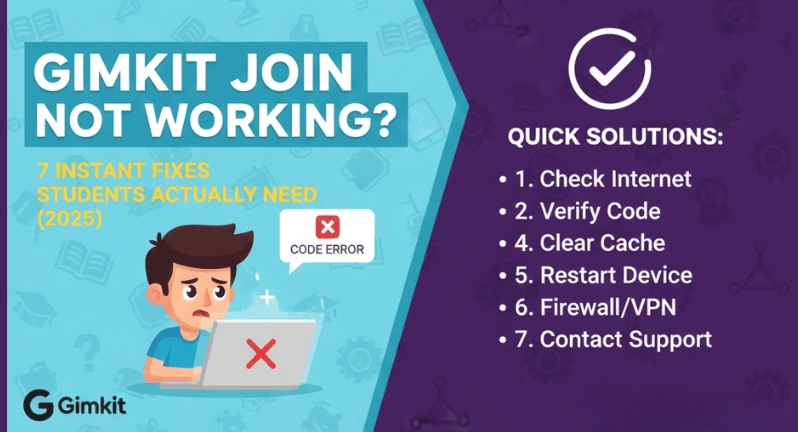
Gimkit Join Not Working? 7 Instant Fixes Students Actually Need (2025)
Can’t join your Gimkit game? Most join failures happen because of typos in the code, expired game sessions, or school network restrictions blocking *.gimkitconnect.com domains. The fixes below resolve 95% of issues within 2 minutes—no IT department needed for most.
Why Gimkit Join Codes Stop Working
Gimkit generates temporary 6-character codes when teachers start games. These codes expire the moment the game ends or when the host closes the session. Network firewalls at schools commonly block Gimkit’s game servers (*.gimkitconnect.com), preventing students from connecting even with valid codes.
Fix 1: Verify Code Accuracy (30 Seconds)
Double-check every character in your 6-digit code. Gimkit codes use uppercase letters and numbers that look similar—6 vs G, 0 vs O, 1 vs I.
Quick verification:
- Ask your teacher to reshare the code verbally or on-screen
- Type the code in uppercase
- Avoid adding spaces before or after characters
- Confirm the game is currently active (not ended)
If your teacher ended the previous game and started a new one, the old code becomes invalid immediately. Request the new code.
Fix 2: Run Gimkit Compatibility Test (2 Minutes)
Visit gimkit.com/check to diagnose connection problems. This official tool tests whether your device and network can access Gimkit’s servers.
What the test checks:
- Connection to *.gimkitconnect.com game servers (ports 80 and 443)
- WebSocket functionality for real-time gameplay
- SSL certificate validation
- WebGL support for 2D game modes
If tests fail, the page shows specific errors. Most failures indicate school firewall blocks that require IT assistance.
Fix 3: Switch Browsers (1 Minute)
Gimkit works best on Chrome, Firefox, Safari, and Edge (updated versions from 2023+). Older browsers or generic mobile browsers lack proper WebGL support.
Recommended browsers by device:
- Chromebooks: Chrome (pre-installed)
- iPads/iPhones: Safari or Chrome
- Android tablets/phones: Chrome or Firefox
- Windows/Mac computers: Chrome, Firefox, or Edge
Update your browser to the latest version if join errors persist. Outdated browsers can’t render Gimkit’s 2D game modes correctly.
Fix 4: Clear Browser Cache (2 Minutes)
Cached data from previous Gimkit sessions can prevent new games from loading. This fix works for repeated “connection failed” errors.
Chrome/Edge:
- Press Ctrl+Shift+Delete (Cmd+Shift+Delete on Mac)
- Select “Cached images and files” and “Cookies”
- Choose “Last hour” or “Last 24 hours”
- Click “Clear data”
- Restart browser and try joining again
Safari:
- Go to Safari > Preferences > Privacy
- Click “Manage Website Data”
- Search for “gimkit”
- Remove all Gimkit entries
- Restart browser
Firefox:
- Press Ctrl+Shift+Delete
- Select “Cookies” and “Cache”
- Choose time range
- Click “Clear Now”
Fix 5: Check School Network Restrictions (Requires IT Help)
School firewalls commonly block Gimkit’s servers. Students see “invalid code” or “connection error” messages even with correct codes.
Required firewall allowlist (share with IT department):
- *.gimkit.com (main site, images, audio)
- *.gimkitconnect.com (game servers—critical for joining games)
- Ports 80 and 443 must be open for these domains
- WebSocket connections must be allowed
- SSL inspection should skip Gimkit domains
Many schools use proxy servers that interrupt secure WebSocket connections. IT admins need to configure proxies to allow real-time data from *.gimkitconnect.com without SSL certificate replacement.
For Chromebook admins: Ensure Chrome policy for “3D content” is set to “Always Allow.” The “Never allow 3D Content” policy blocks WebGL, preventing Gimkit’s 2D modes from loading.
Fix 6: Test Internet Connection (1 Minute)
Weak Wi-Fi causes timeout errors when joining games. Gimkit requires stable connections for real-time synchronization.
Quick connection tests:
- Open speedtest.net and check ping (should be under 100ms)
- Verify download speed is at least 5 Mbps
- Switch from school Wi-Fi to mobile hotspot if available
- Move closer to the router if using Wi-Fi
If other websites load slowly, the issue is your connection—not Gimkit. Restart your router or switch networks.
Fix 7: Try Alternative Join Methods (30 Seconds)
Teachers can share games via QR codes or direct links instead of manual code entry. These methods skip typing errors entirely.
QR code joining:
- Point your phone/tablet camera at the displayed QR code
- Tap the notification that appears
- The game opens automatically in your browser
Direct link joining:
- Click the link your teacher shared (email, Google Classroom, chat)
- You’ll land in the game lobby instantly
- No code entry required
Ask your teacher if they can generate a join link from their hosting dashboard. This works better for classes where multiple students have typing difficulties.
When Gimkit Servers Are Down (Rare)
Check gimkit.crisp.watch/en/ for official server status. If Gimkit’s servers show as offline, wait 10-15 minutes and try again. Server downtime is uncommon but happens during major updates.
Quick Troubleshooting Checklist
Before contacting support, verify:
- Code entered correctly (uppercase, no spaces)
- Game is currently active (not ended)
- Using updated Chrome, Firefox, Safari, or Edge
- Browser cache cleared
- Internet connection is stable (under 100ms ping)
- No browser extensions blocking scripts
- Compatibility test at gimkit.com/check passes
If all checks pass but joining fails, your school’s firewall likely blocks *.gimkitconnect.com. Forward the Fix 5 details to your IT department.
Device-Specific Issues
Chromebooks: Update Chrome OS to the latest version. Outdated operating systems lack necessary security certificates for Gimkit’s SSL connections.
iPads/iPhones: Ensure iOS/iPadOS is updated. Safari requires at least iOS 13+ for proper WebGL functionality. Go to Settings > General > Software Update.
Android tablets/phones: Use Chrome instead of default Android browsers. Generic WebKit browsers don’t handle Gimkit’s JavaScript properly.
School-managed devices: Admin policies may restrict WebGL access. Only IT staff can change these settings in the Google Admin Console or MDM platform.
After-Hours Gaming (Home vs School Networks)
Gimkit codes work anywhere with internet access. If codes fail at school but work at home, your school network is blocking the required domains. This confirms IT needs to adjust firewall rules.
Home networks rarely block educational sites. If codes fail at home, the issue is typically expired codes or browser problems—not network restrictions.
FAQs
Why does “invalid code” appear with the correct code?
The game ended, the host closed it, or your network blocks *.gimkitconnect.com. Verify the game is active and run gimkit.com/check to test connectivity.
Can I rejoin after disconnecting mid-game?
Yes, if the game is still active. Re-enter the same code at gimkit.com/join. Your progress may not save depending on when disconnection occurred.
Do I need a Gimkit account to join games?
No account is required for live games. You only need the join code and a username. Accounts are necessary for homework assignments where progress tracking is required.
Why does the join page load slowly?
Slow loading indicates weak internet or heavy browser cache. Clear cache, close unnecessary tabs, and test your connection speed. Gimkit requires at least 5 Mbps for smooth gameplay.
What if gimkit.com/join won’t load at all?
Your school firewall blocks *.gimkit.com entirely. Contact IT to allowlist all Gimkit domains. Alternative: use your phone’s mobile data instead of school Wi-Fi.
Can I join on multiple devices with one code?
One device per student per code is standard. Some teachers allow multi-device joins, but most game modes detect duplicate usernames and prevent entry.
Why do codes expire so quickly?
Codes remain valid only while the game is active. Once the host ends the session, codes expire to prevent unauthorized access to closed games.